Choosing an Interactive Touch Panel in 2026 requires more than comparing screen sizes and prices. The right panel should fit your room, teaching style, meeting habits, and support expectations. A bright 86-inch display may look impressive, yet it can overwhelm a small classroom. A compact 65-inch model may offer better visibility and easier installation.
Real experience matters. Test the panel with dry, warm hands, styluses, and several users writing together. Check whether palm rejection works during a crowded lesson. Examine the viewing angle from the back row. Listen for fan noise during a quiet presentation. These details often reveal more than a polished product brochure. Check the operating system, touch accuracy, wireless casting, ports, speakers, and compatibility with your existing software. Security updates and warranty coverage also deserve careful attention.
Do not trust specifications alone.
Professional buyers should request a live demonstration and ask for independent test results. Look for reliable evidence about brightness, response time, glass durability, and daily power consumption. Confirm whether replacement parts and trained service technicians are available in your region. Some brands offer impressive features but weak long-term support. That matters after installation day.
Your decision may still involve compromise. The fastest processor may increase cost, while the lowest-priced panel may limit future updates. Consider a realistic five-year ownership plan, not only the purchase invoice. A careful evaluation helps schools, offices, and training centers choose technology that remains useful after the initial excitement fades. Personally, I would rather select a dependable panel with fewer features than an ambitious model that staff rarely understand or use.
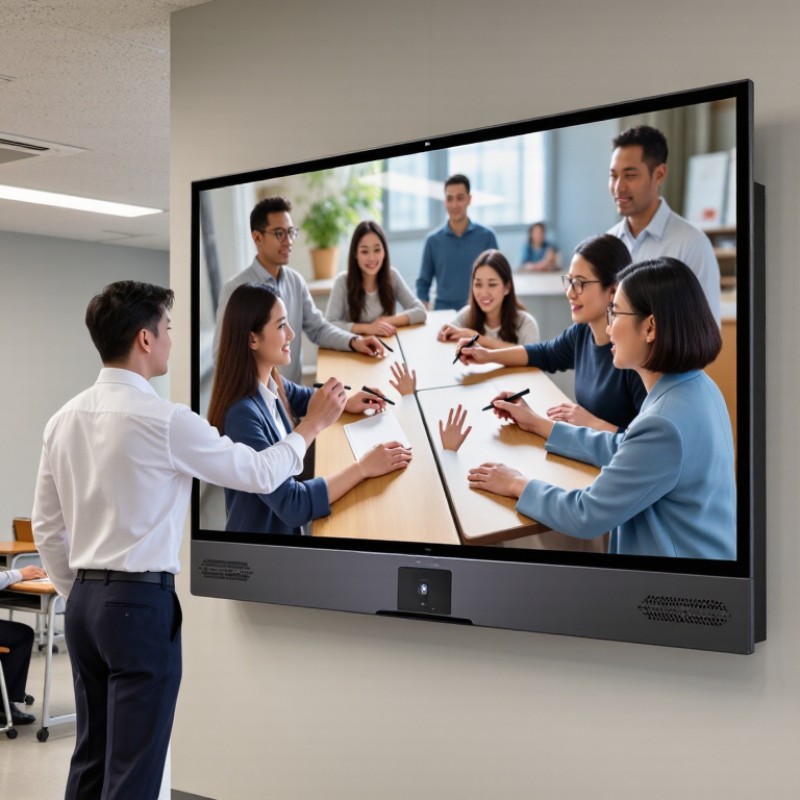
Define Use Cases and Room Size Before Selecting a Touch Panel
How to Choose an Interactive Touch Panel in 2026?
Start with the room, not the screen. Define the main use case first: teaching, team collaboration, visitor guidance, or remote meetings. A training room may need smooth annotation and multiple user access. A reception area may require simple navigation and strong brightness. These needs are different.
Measure the room carefully. In a small meeting room, an oversized panel can dominate the table and create uncomfortable viewing angles. In a classroom, a screen that is too small may force students at the back to lean forward. Check the farthest seat, ceiling lights, window glare, and wall height. A practical test helps. Place a temporary display at the intended position and read ordinary text from every seat.
I have seen teams choose resolution before checking connectivity. That decision caused delays during meetings. Confirm compatibility with existing computers, cameras, speakers, and network policies. Touch accuracy matters too, especially when several people write at once. Ask for hands-on testing with real files, not only a showroom demonstration. Review cleaning requirements, operating temperature, accessibility features, software updates, and service response times. Security documentation should be clear and current. Some specifications look impressive but offer little value in a quiet, compact room. I would also leave extra space around the panel for cables and maintenance. It is an easy detail to miss.
How to Choose an Interactive Touch Panel in 2026?
Define the primary use case and room size before selecting a panel. For compact meeting rooms, a 55-inch panel is typically suitable. Larger classrooms, training rooms, and collaboration spaces generally require 65–86-inch panels to keep text, diagrams, and participant content readable from the back of the room.
Planning reference: room-area ranges are shown in square metres; panel sizes are diagonal inches. Final selection should also consider viewing distance, seating layout, lighting, and content density.
Compare 4K Resolution, 350–500 cd/m² Brightness, and Viewing Angles
How to Choose an Interactive Touch Panel in 2026?
A 4K panel delivers sharp text, detailed diagrams, and smoother video playback. It matters most when users stand close to the screen. However, resolution alone does not guarantee a comfortable experience. I have seen high-resolution displays look dull under strong classroom lighting. Brightness between 350 and 500 cd/m² usually offers a practical balance. Choose nearer 500 cd/m² for sunlit rooms or large windows. Choose nearer 350 cd/m² for controlled offices and meeting rooms. Excessive brightness can cause eye fatigue during long sessions.
Tips: Test the panel at its installation height. View it from the side, not only from the center. Check white backgrounds for uneven brightness. Compare dark images for unwanted reflections. A showroom can mislead you.
Viewing angle specifications deserve careful attention. A wide angle helps several people read content without crowding the center. Look for stable color and contrast near 178 degrees horizontally and vertically. Still, numbers may not tell the whole story. Ask for hands-on testing with text, video, and handwriting. Touch accuracy should remain consistent near the edges. This is where some panels disappoint. Also inspect the glass surface, anti-glare treatment, and response under overhead lights. Reliable suppliers should provide measurement conditions and clear warranty terms. Independent testing data is preferable, but it is not always available. Leave room for doubt.
How to Choose an Interactive Touch Panel in 2026? - Compare 4K Resolution, 350–500 cd/m² Brightness, and Viewing Angles
| Evaluation Dimension |
Entry-Level Interactive Panel |
Balanced Classroom Model |
Bright-Environment Model |
Premium Collaboration Model |
| Recommended screen size |
55–65 in |
65–75 in |
75–86 in |
86–98 in |
| Native resolution |
3840 × 2160 (4K UHD) |
3840 × 2160 (4K UHD) |
3840 × 2160 (4K UHD) |
3840 × 2160 (4K UHD) |
| Total pixels |
8.29 million |
8.29 million |
8.29 million |
8.29 million |
| Typical brightness |
350–400 cd/m² |
400–450 cd/m² |
450–500 cd/m² |
450–500 cd/m² |
| Best lighting condition |
Controlled indoor lighting |
Classrooms and meeting rooms |
Rooms with strong daylight |
Large rooms and open spaces |
| Viewing angle |
178° horizontal / 178° vertical |
178° horizontal / 178° vertical |
178° horizontal / 178° vertical |
178° horizontal / 178° vertical |
| Panel technology |
LED-backlit LCD |
LED-backlit LCD |
LED-backlit LCD with anti-glare surface |
LED-backlit LCD with enhanced anti-glare surface |
| Contrast ratio |
Typical 1,200:1–4,000:1 |
Typical 1,200:1–4,000:1 |
Typical 1,200:1–4,000:1 |
Typical 1,200:1–4,000:1 |
| Touch technology |
Infrared or projected capacitive |
Infrared or projected capacitive |
Infrared with strengthened cover glass |
Infrared or projected capacitive |
| Multi-touch capacity |
Up to 20 touch points |
Up to 20 touch points |
Up to 20 touch points |
Up to 40 touch points |
| Response time target |
≤ 8 ms |
≤ 8 ms |
≤ 8 ms |
≤ 6 ms |
| Minimum recommended viewing distance |
Approximately 1.5–2.5 m |
Approximately 1.8–3.0 m |
Approximately 2.0–3.5 m |
Approximately 2.5–4.0 m |
| Most suitable application |
Small meeting rooms, training rooms, and home offices |
Typical classrooms and medium-sized conference rooms |
Bright classrooms, showrooms, and lecture rooms |
Large conference rooms, command spaces, and collaborative workspaces |
Note: Brightness, contrast, viewing angle, response time, and touch performance are manufacturer-rated specifications and may vary by panel configuration, measurement method, ambient light, and software environment.
Verify 20-Point Touch, <10 ms Latency, and Palm-Rejection Performance
When choosing an interactive touch panel in 2026, test its real response, not only its advertised features. Confirm that twenty fingers register at the same time across the entire display. Use gloves, dry fingertips, and slightly damp fingers during testing. A panel may perform perfectly in a showroom but miss touches near the corners.
Latency should stay below 10 milliseconds during writing, dragging, and rapid menu selection. Use a high-speed camera or an input-response testing tool for more reliable measurements. Watch for visible gaps between the pen tip and the digital line. Small delays become tiring during long lessons or design work. Smooth motion matters.
Palm rejection also deserves practical testing. Rest a full hand on the screen while writing with a stylus. Try a wrist angle, a sleeve edge, and accidental finger contact. The panel should ignore these touches without blocking a deliberate second finger. My earlier tests focused too much on clean, isolated taps. That was a mistake. Real users create messy contact patterns. Repeat each test several times, because one successful demonstration proves very little. Record missed touches, false marks, and recovery time after contact changes. A reliable panel should remain predictable, even when the user is not.
Check USB-C, HDMI 2.1, Wi-Fi 6, OS Support, and App Compatibility
Choosing an interactive touch panel in 2026 starts with the ports, not the screen size.
USB-C should support video input, touch return, data transfer, and enough power delivery for connected devices. A port may look modern but provide only charging. Test it with a laptop, camera, and external storage before purchase. I once trusted a specification sheet and found that touch feedback failed through one cable.
HDMI 2.1 matters for demanding classrooms, control rooms, and design work.
Check its actual bandwidth, 4K refresh support, variable refresh features, and cable requirements. Wi-Fi 6 can improve performance when many users connect, but router quality and room congestion still matter. Do not treat the Wi-Fi label as a guarantee.
Operating system support requires closer inspection.
Confirm whether the panel receives security updates, supports common file formats, and allows administrator controls. App compatibility should be tested with your real tools, including video meetings, annotation software, browsers, and cloud storage. Some applications display correctly but lose palm rejection or multi-touch functions. That detail is easy to miss. I still consider my checklist incomplete when testing only popular apps, because smaller educational and industrial programs may behave differently. A short trial with your own USB devices and applications reveals more than polished demonstrations.
Evaluate IEC 62368-1 Safety, ENERGY STAR Efficiency, and Total Cost
How to Choose an Interactive Touch Panel in 2026?
A reliable touch panel begins with safety, not screen size. Check whether the model meets IEC 62368-1 requirements for audio, video, and information technology equipment. Ask for a current certificate, test report, or declaration of conformity. Documents matter more than a sales promise. Inspect heat vents, cable access, power protection, and mounting stability. In a classroom, a loose cable can become a daily hazard. Installation conditions still matter.
ENERGY STAR efficiency can reduce operating costs, especially when panels run eight hours daily. Compare typical and standby power figures, not only maximum wattage. A bright display may improve visibility, but excessive brightness wastes energy. Use automatic brightness control where lighting changes during the day. Small savings become measurable across several rooms. However, energy labels do not reveal every user experience.
Calculate total cost over five years. Include the panel, wall mount, cables, installation, software updates, cleaning, training, repairs, and eventual replacement. A lower purchase price can hide expensive downtime. Check warranty length, spare-part availability, and local technical support. Request performance data from an accredited laboratory when possible. I have found that touch latency and glare often matter more than impressive specifications. My own judgment can be imperfect, especially when demonstrations use ideal lighting. Test the panel with dry and slightly damp fingers, varied viewing angles, and real room noise before approving the purchase.
Conclusion
Choosing the right Interactive Touch Panel in 2026 begins with a clear understanding of your use case, audience, and room size. A panel for classrooms, meeting rooms, training spaces, or public information areas should provide an appropriate screen size, 4K resolution, 350–500 cd/m² brightness, and wide viewing angles for comfortable visibility. Touch performance is equally important, so look for support for at least 20-point touch, less than 10 ms latency, and reliable palm rejection to ensure smooth writing, drawing, and collaboration.
Before purchasing, confirm that the panel offers practical connectivity, including USB-C, HDMI 2.1, and Wi-Fi 6, along with broad operating-system support and compatibility with essential applications. Safety and operating costs should also influence the decision. Verify IEC 62368-1 compliance, ENERGY STAR efficiency, warranty coverage, service availability, and expected maintenance expenses. Evaluating the complete lifecycle cost—not only the initial price—helps ensure the panel delivers dependable performance and long-term value.

 Xiangrui Optoelectronics