A finger tap looks simple: a glass surface responds, an icon opens, and the device feels almost intuitive. Yet a Touch Screen is a sensing system, not merely a display. Its importance is visible in everyday devices. IDC’s Worldwide Quarterly Mobile Phone Tracker reported 1.24 billion smartphone shipments worldwide in 2024, up 6.4% from 2023. That figure measures phones, not touch panels alone, but it shows the scale of devices where touch is a primary way to interact. At the 2007 iPhone launch, technology leader Steve Jobs famously said, “If you see a stylus, they blew it.” The line captured a design ambition. It did not mean every finger-driven interface works perfectly.
Most modern phones use projected capacitive screens. A fine electrode grid detects changes in the electric field when a conductive finger approaches the glass. A controller reads those changes as coordinates, then software interprets a tap, swipe, or pinch. The response can feel immediate. Beneath your fingertip, however, several components must cooperate. Resistive screens work differently: pressure brings layered surfaces into contact, so a gloved hand or stylus may operate them. Each method has trade-offs in cost, clarity, durability, and input sensitivity. Water, thick gloves, scratches, and calibration can still affect performance. That is easy to overlook. Understanding how the screen senses contact helps explain why the same gesture may behave differently across devices—and why touch is convenient, but not infallible.
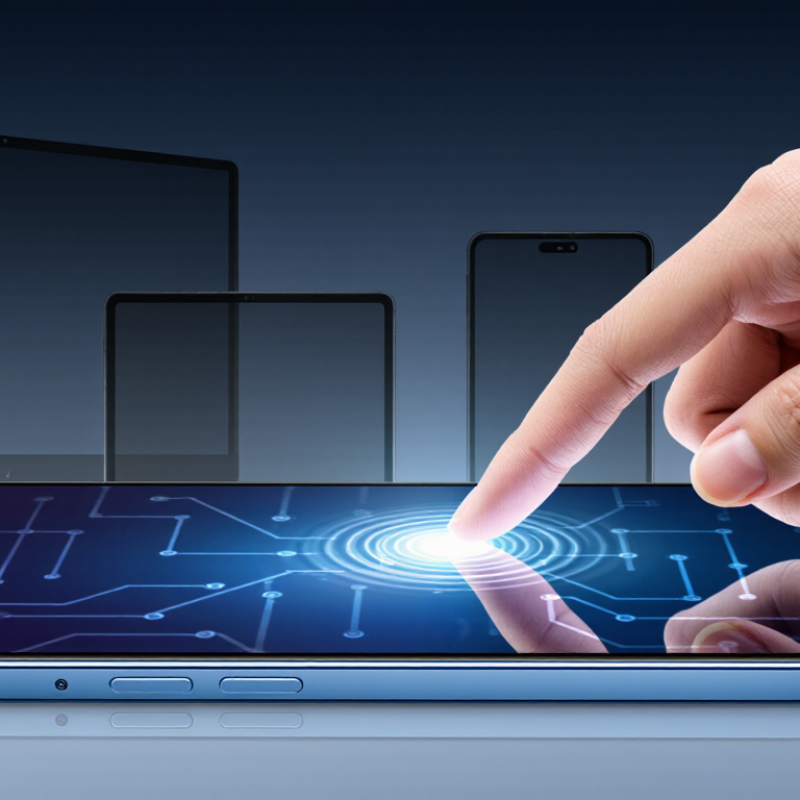
A touchscreen is a display that also senses where a finger or stylus makes contact. On common capacitive screens, a touch changes the screen’s electrical field. Software reads that change and turns it into an action, such as opening a map or moving a cursor. A tap can feel immediate; wet fingers or thick gloves may confuse the sensor. That matters in real use.
Touchscreens appear in phones, tablets, ticket machines, vehicle dashboards, hospital equipment, and shop payment terminals. IDC’s Worldwide Quarterly Mobile Phone Tracker recorded 1.24 billion smartphone shipments in 2024. Its Worldwide Quarterly Tablet Tracker counted 147.6 million tablet shipments that year. These figures show the scale of two everyday settings for touch input, not every touchscreen application.
In a clinic, a wipeable display can help staff enter notes near a bedside.
At a station, a large public screen can guide a traveler through several choices.
But touch is not always the best control. A driver may need a physical button without looking down, and a screen can be hard to use with gloves. Convenience has limits.
A touch screen is a layered assembly, not a single sheet. Its visible surface is usually cover glass or durable plastic, chosen to resist scratches and spread the force of a tap. Beneath it sits a transparent sensor layer. In many screens, fine conductive traces detect changes in electrical capacitance when a finger approaches. The display panel below creates the image, while thin optical adhesive holds the layers together and limits reflections. Small gaps matter. They can soften the image or make touch response feel less direct.
A touch controller reads signals from the sensor and estimates where contact occurred. It sends those coordinates to the device’s software, which decides whether they mean a tap, swipe, or pinch. The process happens quickly, though wet fingers or thick gloves can complicate detection. Some screens use pressure-sensitive resistive layers instead: two conductive films meet when pressed. That design can respond to many kinds of input, but often feels less like touching the image itself. The stack looks orderly in a diagram; real panels are less tidy. Dust, moisture, heat, and manufacturing tolerances can all affect performance, so each layer must be tested as part of the whole.
A simplified view of the main layers in a typical capacitive touch screen, from the user-facing surface to the display.
How it works: A finger changes the capacitance sensed by transparent electrodes beneath the cover. The touch controller interprets those changes as touch input, while the display panel shows the image. Layer order is shown here; actual designs and layer thicknesses vary.
A touch screen detects a change at a specific point, then translates that change into coordinates. On a projected-capacitive screen, a grid of transparent electrodes creates an electrical field beneath the glass. A fingertip changes the coupling between nearby electrodes; the controller measures that shift and estimates where the contact occurred. It happens quickly, but the screen is not literally sensing pressure. A light touch can register, while a gloved finger may not.
The controller filters noise, checks whether the signal resembles a real touch, and sends coordinates to the device’s software. Moisture, thick gloves, or electrical interference can confuse this process. The distinction matters: detection is a measurement, not a perfect reading of intent. The analogy is useful, though imperfect.
Reliability testing also matters. IEC 61000-4-2:2008 specifies electrostatic-discharge test levels of 2, 4, 6, and 8 kilovolts for contact discharge, and 2, 4, 8, and 15 kilovolts for air discharge. These are test levels, not guarantees that every screen withstands every event. Engineers use such tests to evaluate whether electrical disturbances disrupt normal operation. Real fingers are messier than test setups. A damp fingertip, for example, can spread its signal across several sensing points, so software must interpret the pattern rather than simply mark one pixel.
A capacitive touchscreen turns a finger’s contact into a measurable change in an electric field. Beneath the glass, a grid of electrodes is scanned repeatedly. When a finger approaches, it changes the capacitance at nearby points. The touch controller filters noise, estimates the contact’s coordinates, and sends a touch event to the device’s operating system. That event may become a tap, swipe, or pinch. Small signal, visible action.
The operating system checks the event’s location and movement against interface rules. A brief contact on a button can open a menu; a moving contact can scroll a page. Timing and filtering matter: a wet surface or an accidental palm contact may create confusing input. IDC’s Worldwide Quarterly Mobile Phone Tracker reported 1.24 billion smartphone shipments in 2024. That scale highlights why touch processing must feel consistent across many devices, though shipment figures do not measure touch accuracy. One detail is easy to miss: the screen detects a signal, not what the user intended.
Tips: Keep the glass dry when testing touch problems. Try the same gesture in different areas, and note whether the delay or missed contact repeats. A single failed tap is not enough to diagnose the cause.
A touch screen combines a display with a sensor layer that detects contact and sends coordinates to a device. The sensing method shapes how it feels to use. Resistive screens register pressure between flexible layers, so a gloved finger or plastic stylus can work. They suit dusty workbenches, but repeated pressure can wear the surface. Capacitive screens detect changes in an electrical field. They support smooth gestures and multiple fingers, though ordinary versions may not respond to thick gloves. Small details matter.
Infrared screens detect interruptions in light beams around the display, which makes them useful on large public panels. Their exposed edges can collect dust. Surface acoustic wave screens use sound moving across glass; water or grime can interfere with those waves. There is no universal winner. A wet kitchen, a bright kiosk, and a gloved workshop ask different things of a screen. Grand View Research estimated the global touch-screen market at USD 76.81 billion in 2023, with a projected 13.6% compound annual growth rate through 2030. That market estimate signals broad demand, not that one technology dominates. The categories can blur in real products, and choosing by a simple “best” label is often a mistake.
| Technology | How It Detects Touch | Typical Input | Key Advantages | Main Limitations | Common Uses |
|---|---|---|---|---|---|
| Projected capacitive (PCAP) | A grid of electrodes senses changes in capacitance when a conductive object, such as a finger, approaches or touches the surface. | Finger; some systems support a conductive stylus and multi-touch. | Supports gestures and multi-touch; has a durable glass surface; no pressure is needed for normal operation. | Ordinary gloves may not work unless the system is designed for them; performance can be affected by moisture or electrical noise. | Phones, tablets, control panels, and interactive displays. |
| Surface capacitive | A conductive coating creates an electrical field across the surface; touch changes the current measured at electrodes near the corners. | Typically a bare finger or conductive stylus; usually single-touch. | Good optical clarity and a relatively robust surface; no moving layers are required. | Generally less suited to multi-touch than PCAP; a scratched or damaged coating can affect operation. | Some public-use terminals and industrial control equipment. |
| Resistive | Pressure brings two conductive layers into contact, changing electrical resistance at the touch point. | Finger, gloved hand, or non-conductive stylus; often single-touch. | Works with many input objects and gloves; does not rely on the user's electrical conductivity. | Requires pressure; the flexible top layer can wear or scratch, and added layers may reduce display clarity. | Industrial equipment, handheld terminals, and environments where gloves are common. |
| Infrared (IR) | Infrared emitters and sensors form an invisible grid around the display; an object is detected when it interrupts one or more beams. | Finger, gloved hand, or other opaque object; multi-touch is possible on suitable systems. | The sensing layer does not cover the display surface; can detect different objects without electrical contact. | Dust or debris can obstruct the optical grid; a thick bezel is often needed, and bright ambient light may affect some designs. | Large interactive displays, kiosks, and collaborative boards. |
| Surface acoustic wave (SAW) | Ultrasonic waves travel across the glass; a touch absorbs part of the wave, and sensors identify the changed signal. | Usually a finger or soft stylus; input depends on the object interacting with the wave. | The glass surface can provide high optical clarity and is resistant to wear from normal touching. | Water, dirt, or other surface contaminants can interfere with wave transmission; hard objects may not register reliably. | Some information kiosks and public interactive displays. |
| Optical imaging | Cameras or image sensors monitor the display area and locate a touch by detecting an object or its shadow. | Finger or other visible object; multi-touch capability depends on the system design. | Can scale to large screens and may support varied input objects without a sensing layer over the image. | Detection can be affected by lighting, shadows, or objects near the screen; camera alignment and calibration may be required. | Large-format displays, interactive walls, and specialized installations. |
Note: Actual performance, glove support, accuracy, and multi-touch capability vary by implementation and operating conditions.
A capacitive screen measures changes in an electrical field beneath its glass. A controller estimates where contact occurred. It senses signals, not intent.
Usually not. A light fingertip can register because the screen detects electrical changes rather than pressure. A stylus may work too, depending on the screen.
Thick gloves, moisture, or electrical interference can confuse its sensors. A damp fingertip may spread the signal across nearby points. The result can be messy.
The controller filters the signal and sends coordinates to the device’s software. Software may interpret a brief contact as a tap or movement as a swipe. Small signal, visible action.
Moisture can alter the electrical signal and make contact harder to locate. Dry the glass, then try the same gesture again. One missed tap proves little.
They appear in phones, tablets, ticket machines, vehicle dashboards, hospital equipment, and payment terminals. A bedside display may help staff enter notes. Public screens guide travelers through choices.
No. A driver may need a physical button without looking down, and gloves can make touch input difficult. Convenience has limits.
Try the same gesture in different areas and note repeated delays or missed contacts. Compare results on a dry screen. The cause may still be unclear.
A Touch Screen is an interactive display that lets people control a device by touching images, buttons, or other areas on its surface. It is commonly used in phones, tablets, information kiosks, vehicles, and many other devices. Beneath the display, a touch screen typically contains protective glass or a surface layer, a touch-sensitive layer, and electronic components that connect the sensor to the device’s processing system.
When a finger or compatible object touches the screen, the sensor detects a change, such as pressure, electrical charge, or reflected light, depending on the technology. The system identifies the touch’s location and sends that information to a controller, which translates it into an action, such as opening an app, selecting an item, or moving an image. Resistive, capacitive, infrared, and surface acoustic wave technologies detect touch in different ways, each with its own advantages for accuracy, durability, and operating conditions.

Xiangrui Optoelectronics